Edit a PDF on iPhone, including the text already in it
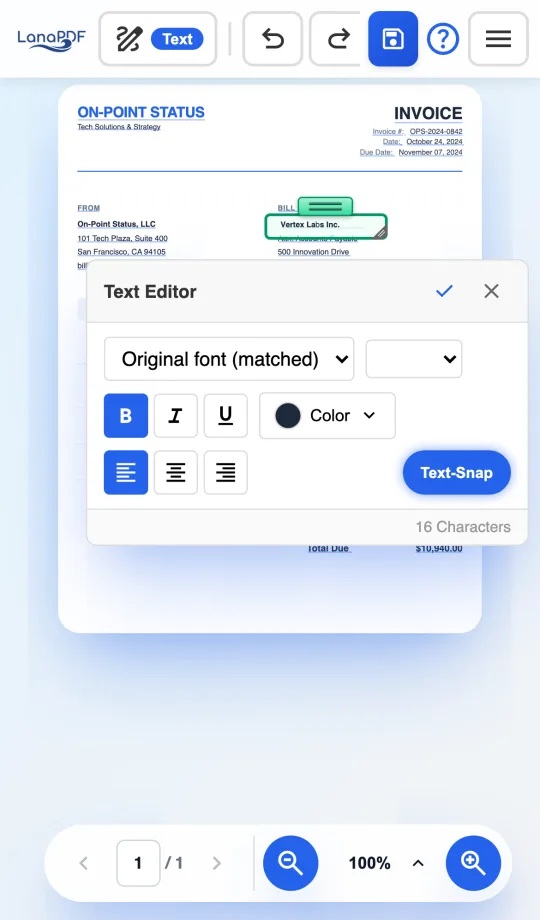
Open the PDF in Safari, tap a line and type. LanaPDF changes the words that are already in the document, in the document's own font, instead of laying a text box on top. Nothing to install, and the file is processed on your iPhone, not uploaded.
How to edit a PDF on iPhone
- Open lana-pdf.com/app in Safari. Chrome and the other iPhone browsers work too. iPad works the same way.
- Tap the upload area and choose the PDF. iOS offers the Files app, iCloud Drive and the folders of apps such as Google Drive or Dropbox if you have them installed.
- Choose the Text tool, then tap the line you want to change. The whole line opens for editing in the matched font and size, and the keyboard comes up straight away.
- Type the correction and tap the check mark. Pinch to zoom in on small print first if you need to.
- Tap the Save button, name the file and tap Save. Safari asks to download it, and the PDF lands in Files, in the Downloads folder.
What iPhone Markup cannot do
The Markup tools built into Files, Mail and Photos can draw, add a text box and place a signature. They cannot change a word that is already in the PDF: a typo in a contract, a wrong date, an old address. The usual workaround is to cover the word with a white shape and type over it, which leaves the original text in the file for anyone who copies or searches it.
Markup also has no redaction tool. A black shape drawn over a PDF is an annotation, and the text under it stays in the file.
| Task | iPhone Markup | LanaPDF in Safari |
|---|---|---|
| Change text already in the PDF | No | Yes, in the original font |
| Move a paragraph, price or image | No | Yes, with Cut & Move |
| Redact so the text is gone from the file | No | Yes |
| Highlight, draw, add shapes | Yes | Yes |
| Sign | Yes | Yes, with a free account to save signatures |
What works by touch
Edit existing text
Tap a line to rewrite it in place. New text boxes open on a tap too.
Redact
Drag over names, account numbers or addresses. The text under the box is removed when you save.
Sign with your finger
Draw a signature on the pad and tap the page where it goes.
Highlight and draw
Highlighter, pen, shapes, arrows and numbered bubbles.
Cut & Move
Drag around a block of the page and tap where it should go.
Pages
Reorder, rotate and delete pages, or add pages from another PDF.
Common fixes on the go
Most phone edits are small and urgent: a typo in a contract before it goes out for signature, a date on a form, an amount on an invoice. For documents you are about to send, redact the account numbers first, then sign. If a paragraph sits in the wrong place, move it instead of retyping it.
A larger screen is still easier for long documents. The same editor runs on Chromebooks, Macs and Windows PCs.
FAQ
Can I edit the text of a PDF on my iPhone?
Yes. Open lana-pdf.com/app in Safari, choose the Text tool and tap the line you want to change. LanaPDF edits the words already in the PDF and matches the document's font, so the correction reads as part of the original.
Do I need to install an app to edit a PDF on iPhone?
No. LanaPDF runs in Safari or Chrome on iPhone and iPad. To keep it one tap away, open lana-pdf.com/app, tap Share, then Add to Home Screen.
Is my PDF uploaded when I edit it on my iPhone?
No. The file is opened and edited inside the browser on your iPhone. It is not sent to our servers.
Is it free to edit a PDF on iPhone with LanaPDF?
Editing is free and needs no account. Your first export, meaning the first download, print or Google Drive save, is free too, with no account and no card. After that, a 7-day pass is $4 and does not renew, or membership is $6 a month.
Where does the edited PDF go on my iPhone?
Safari saves it to the Downloads folder in the Files app, unless you chose a different download location in Safari's settings. From there you can share it, attach it to an email or move it to iCloud Drive.