Tax returns, bank statements, payslips, contracts, medical letters: these often have to go by email, and email is not a safe place for them. A password on the PDF means that a forwarded message, a wrong recipient or a hacked inbox exposes a file nobody can open.
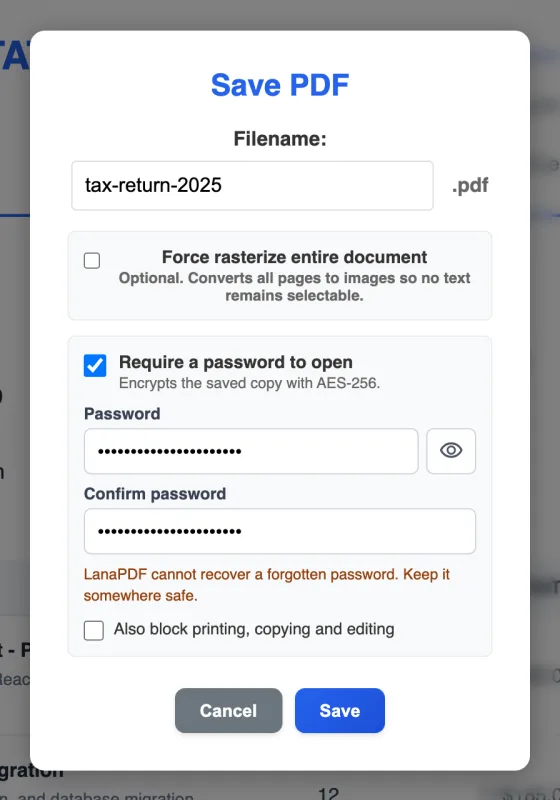
LanaPDF adds the password in your browser. You tick one box in the Save dialog, type the password twice and save. The file is encrypted with AES-256 and is never uploaded.
In this guide
Why Protect It on Your Own Device
Most free "protect PDF" websites upload your file, encrypt it on their server and send it back. The unprotected document, the one you wanted to keep private, has then been sent to a stranger's computer first.
LanaPDF does the encryption in the browser tab. The document and the password stay on your device; only the encryption program itself is downloaded, the first time you need it.
Password Protect a PDF in Four Steps
- Open the PDF in the LanaPDF editor. Images and scans work too: they are saved as a PDF.
- Make any changes first. Redact account numbers, sign, or fill in the form. The password is added last, when you save.
- Click Save and tick Require a password to open. Type the password and type it again to confirm. The Protect button in the Tools menu opens the same dialog.
- Save. The new file asks for the password before it shows anything.
Choosing a Password
- Length beats symbols. Four random words, such as maple-oven-river-quiet, are harder to guess than P@ss1 and easier to read out over the phone.
- Do not reuse your email or bank password.
- Send it another way. If the PDF goes by email, send the password by text message or say it on a call. A password in the same email protects nothing.
- Keep a note of it. LanaPDF cannot recover a forgotten password, and neither can anyone else. That is the point of the encryption.
Blocking Printing, Copying and Editing
The Save dialog also offers Also block printing, copying and editing. The recipient still opens the file with your password, but Acrobat, Preview and most other apps then refuse to print it, copy text from it or change it.
Treat this as a request, not a lock. Apps that follow the PDF standard respect it, but some tools ignore it. The open password is what actually keeps people out.
What the Recipient Sees
The file looks like any other PDF. When it is opened in Adobe Acrobat or Reader, macOS Preview, Chrome, Edge, Firefox, or the Files app on an iPhone or Android phone, a password prompt appears first. After the correct password, the document opens normally. Nothing needs to be installed.
To remove the password later, open the file, untick the box and save. See how to remove a password from a PDF.
Checklist Before You Send
- Hide what the recipient does not need. Redaction removes the text; a password only locks the whole file.
- Open the saved file once and check it asks for the password.
- Send the password separately from the file.
- Keep the password somewhere you will find it again.
FAQ
How do I password protect a PDF for free?
Open the PDF in LanaPDF at lana-pdf.com/app, click Save, tick Require a password to open, type the password twice and save. The file is encrypted in your browser and is not uploaded.
How secure is a password-protected PDF?
LanaPDF uses AES-256, the strongest encryption in the PDF standard. The file is as safe as the password: use a long one, such as four random words, and send it separately from the file.
Can I password protect a PDF on an iPhone or Android phone?
Yes. Open lana-pdf.com/app in Safari or Chrome on the phone, open the PDF, and save it with Require a password to open ticked.
Is it free to password protect a PDF?
Editing and exporting are free and need no account or card: download, print or save to Google Drive as often as you like. Free exports carry a small LanaPDF footer on each page. For exports without the footer, a 7-day pass is $4 and does not renew, or membership is $6 a month.
Protect your PDF now
AES-256 encryption in your browser. The file never leaves your device. The tool page: protect a PDF.
Open the LanaPDF Editor