Job applications, rental applications, tax forms, school and medical forms, visa paperwork: most arrive as PDFs with boxes to fill in. Printing, writing by hand and scanning the pages back takes twenty minutes and looks worse than typing.
LanaPDF fills the form in your browser. Click a field, type, tick the boxes, pick from the lists and save. Your answers stay in the fields, and the file is not uploaded.
In this guide
Is Your Form Fillable?
Open it in the LanaPDF editor. If the PDF has form fields, a message says how many, and every field shows as a box you can click into.
If nothing happens when you click a blank line, the form is a flat page with no fields. You have two options: type on it with the Text tool, as described in filling in a PDF that is not fillable, or add real fields yourself, as described in how to make a PDF fillable.
Fill Out a PDF Form in Four Steps
- Open the form in the LanaPDF editor. Chrome, Safari, Edge and Firefox all work, on a computer or a phone.
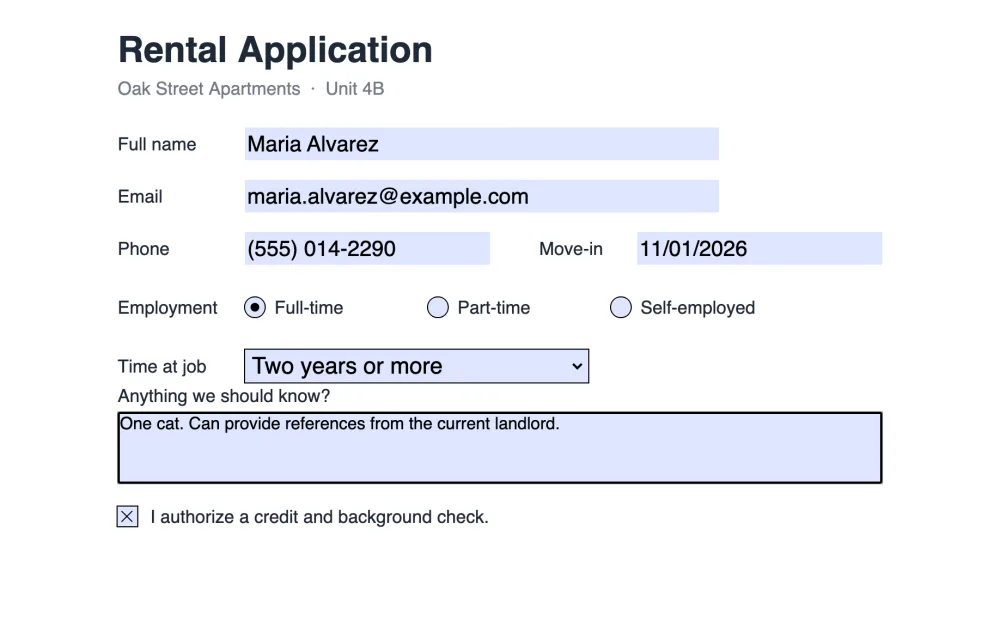
- Click the first field and type. Press Tab to move to the next one. Multi-line boxes wrap as you type.
- Tick checkboxes, choose radio buttons and pick from dropdowns. Choosing one radio button clears the others in its group.
- Save. The saved PDF holds your answers in its fields, so it can be opened and changed again in Acrobat, Preview or Chrome.
Keep It Fillable or Flatten It?
| Keep fillable (default) | Flatten form fields | |
|---|---|---|
| Answers can be changed later | Yes, by anyone with the file | No |
| Looks the same in every app | Almost always | Always |
| Best for | Drafts, forms you will update, forms the office will fill further | The final copy you send or submit |
To flatten, tick Flatten form fields in the Save dialog. The answers become part of the page. More on what flattening means in what does flattening a PDF mean.
Why Answers Disappear in Other Apps
A form field stores two things: the value you typed and a small drawing of how it looks. Some apps save only the value and leave the drawing to whoever opens the file next. When the next app does not redraw it, the field looks empty even though the answer is there, and the person you sent it to calls to say the form is blank.
LanaPDF saves both for every field you fill. If you want to be certain, flatten the final copy: then there are no fields left to redraw.
Signing and Sending the Form
Most forms end with a signature line. Use the Signature tool to draw, type or upload your signature and place it on the line; see signing a PDF. If the form holds personal details, add a password before you email it.
Checklist Before You Send
- Scroll through every page. Required fields are often on the last one.
- Dates are in the format the form asks for.
- Signed and dated where asked.
- Final copy flattened if the answers must not change.
- Open the saved file in another app and check the answers show.
FAQ
How do I fill out a PDF form online?
Open the form in LanaPDF at lana-pdf.com/app. Click each field and type, tick the checkboxes, choose from the dropdowns and save. The answers are saved in the form fields.
Why can't I type in my PDF form?
The PDF probably has no form fields: it is a flat page. Type on it with the Text tool, or add real fields with LanaPDF's Forms tools and then fill them in.
How do I keep people from changing my answers?
Tick Flatten form fields in the Save dialog. The answers become part of the page and the fields are removed, so the form can no longer be edited as a form.
Is it free to fill out a PDF form?
Editing and exporting are free and need no account or card: download, print or save to Google Drive as often as you like. Free exports carry a small LanaPDF footer on each page. For exports without the footer, a 7-day pass is $4 and does not renew, or membership is $6 a month.
Fill out your form now
Click, type, save. Free, no upload. The tool page: fill in a PDF form.
Open the LanaPDF Editor