Edit a scanned PDF: recognize the text, then change it
A scan is an image, so a normal PDF editor has no words to open. LanaPDF runs OCR on your device to find the words, then the Text tool lets you click a line on the scan and retype it in matching size and weight. The file is not uploaded.
How to edit a scanned PDF
- Open the scan at lana-pdf.com/app. PDFs from a scanner or a phone scanning app open, and so do JPG, PNG and TIFF images.
- Run OCR. Open Tools and choose OCR. Recognition runs in your browser; a progress bar shows each page.
- Choose the Text tool and click the words to change. The edit box covers the line with the page's own background color and opens the recognized text, sized and weighted to match.
- Type the correction and save. For scanned PDFs, the recognized words are saved as an invisible text layer, so the exported file can be searched and copied.
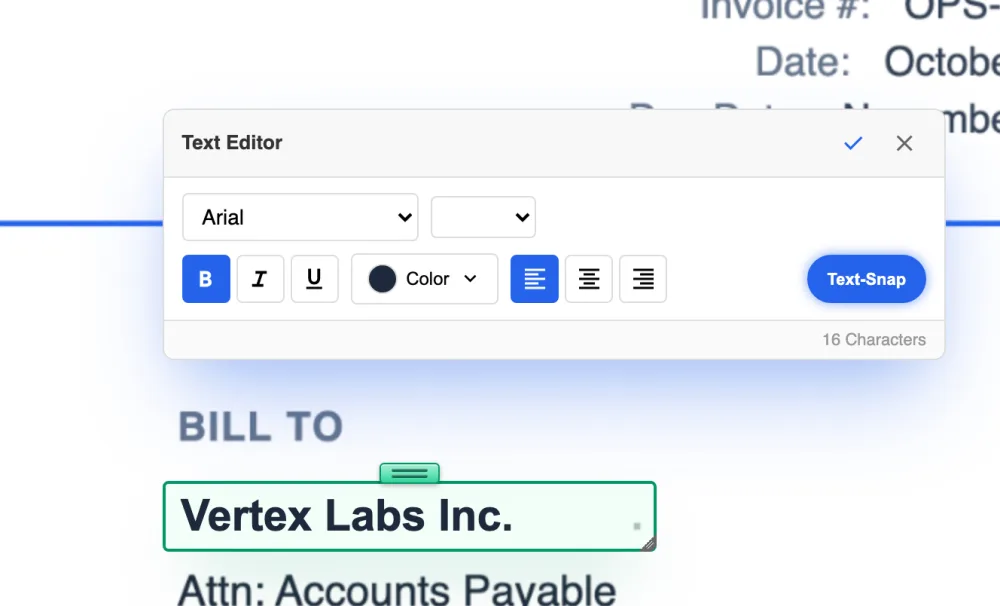
What to expect from a scan
Typeface. A scan stores pixels, not a font file. LanaPDF measures the size, weight and slant of the recognized words and uses the closest standard typeface. On a PDF that was created digitally, the editor uses the document's own embedded font instead; see changing text in the same font.
Background. The patch behind the new text takes its color from the page around the line, so it blends on white and tinted paper. Heavy texture or a photo behind the text can still show the patch.
Recognition quality. Straight, sharp scans at around 300 dpi recognize best. Handwriting is not recognized reliably. If a scan is crooked, damaged or will not open, run Repair first; Deep Repair runs OCR on the result automatically.
Also on a scanned page
Redact
Drag over names or account numbers. On a scan the covered pixels and any recognized words under the box are removed. See Redact PDF.
Search and copy
After OCR, the words on a scanned PDF can be found and copied in the saved file. See OCR PDF.
Sign
Draw or type a signature and place it on the scan. See Sign PDF.
Move a block
Cut a paragraph, stamp or logo out of the scan and drop it elsewhere with Cut & Move.
FAQ
Can you edit a scanned PDF?
Yes, after OCR. A scanned page is an image, so first run OCR from the Tools menu in LanaPDF. Then choose the Text tool, click the line you want to change and type the correction.
How do I edit a scanned PDF for free?
Editing is free and needs no account. Your first export, meaning the first download, print or Google Drive save, is free too, with no account and no card, and carries a small LanaPDF footer. After that, and for exports without the footer, a 7-day pass is $4 and does not renew, or membership is $6 a month.
Is my scan uploaded for OCR?
No. OCR runs inside your browser using a WebAssembly build of the open-source Tesseract engine. Your document is not sent to our servers.
Why doesn't the new text match the scan's font exactly?
A scan stores pixels, not a font. LanaPDF matches the size, weight and slant of the recognized words with a standard typeface. On a PDF that was created digitally, the editor uses the document's own embedded font.