Change text in a PDF, in the same font
Click the line you want to change and retype it. LanaPDF opens the words that are already in the PDF in the document's own font, size and color, and removes the old words from the file when you save. It runs in your browser, and the file is not uploaded.
How to change text in a PDF
- Open lana-pdf.com/app and drop the PDF in. It works in Chrome, Safari, Edge and Firefox on Windows, Mac, Chromebook, iPhone and Android.
- Choose the Text tool and point at the text. An outline shows what a click will open: the words on that line that share one typeface, weight and size.
- Click and type the new wording. The edit box opens in the document's font. The Text Editor panel says Original font (matched). Press the check mark or click outside to finish.
- Save. The new line is written onto the page and the words it replaced are removed from the file, so they cannot be copied or found with a search.
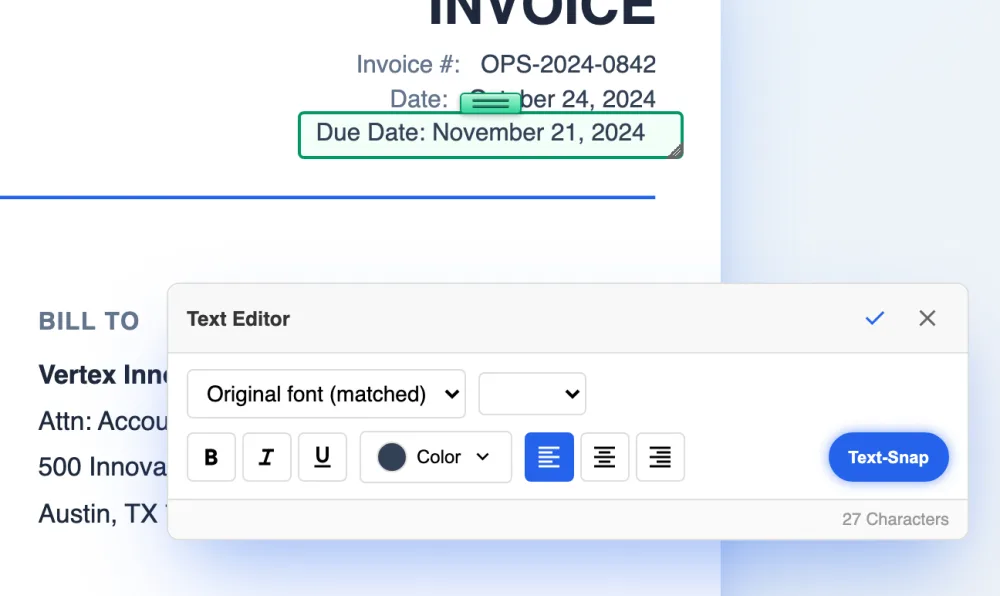
Same font, or a white box on top
Most free PDF tools, and the Markup and Preview tools on Apple devices, cannot change a word that is already in a PDF. The workaround they leave you is to cover the old word with a white rectangle and type over it in whatever font the tool offers. The replacement rarely matches, and the original word is still in the file for anyone who copies the text or searches it.
Converting the PDF to Word or Google Docs gets you editable text, but fonts that are not installed on your computer are substituted and the layout often moves.
| White box + text box | Convert to Word or Docs | LanaPDF | |
|---|---|---|---|
| Font of the new text | Whatever the tool offers | Substituted if not installed | The document's embedded font |
| Old words left in the file | Yes, under the box | No | No |
| Layout | Unchanged | Often shifts | Unchanged |
| File uploaded | Depends on the site | Google Docs: yes, to Drive | No |
What people change
Dates
A due date, an effective date, the date on a letter. See how to change a date on a PDF.
Typos
A misspelled name or a wrong clause number in a contract before it goes out. See fixing a typo in a contract.
Amounts and details
A price, a quantity, an address or a phone number on an invoice or a quote you issued.
Whole paragraphs
Rewrite a line, or move a block somewhere else on the page with Cut & Move.
When the text will not open
The page is a scan. A scanned page is a picture of text, so there are no words to open. Run OCR from the Tools menu first; it finds the words on your device and makes them clickable. See editing a scanned PDF.
A letter you type is not in the document. PDFs usually embed only the characters they use. If you type a letter the document never used, that letter is drawn in the closest standard font.
The file will not load or shows garbled text. Run Repair, then edit the repaired copy.
FAQ
How do I change text in a PDF and keep the same font?
Open the PDF at lana-pdf.com/app, choose the Text tool and click the line. LanaPDF opens the existing words in the font embedded in the PDF, so the replacement uses the same typeface, size and color. Type the change and save.
Can I replace text in a PDF for free?
Editing is free and needs no account. Your first export, meaning the first download, print or Google Drive save, is free too, with no account and no card, and carries a small LanaPDF footer. After that, and for exports without the footer, a 7-day pass is $4 and does not renew, or membership is $6 a month.
Does the old text stay hidden in the file?
No. When you save, the words you replaced are removed from the page, so they cannot be copied, searched or recovered from the exported PDF. Covering text with a white box leaves it in the file.
Is my PDF uploaded when I edit it?
No. The PDF is opened and edited inside your browser. It is not sent to our servers.
Why can't I click the text in my PDF?
The page is probably a scan: an image of text with no text layer. Run OCR from the Tools menu first. It recognizes the words on your device and makes them editable.